Monday, April 20, 2015

Navigating your iOS Device

Navigation Basics
Now that you’ve taken your first step into the iOS world with multitouch gestures, it’s time to learn how to navigate your device. We’ll go over where your apps are stored, how to organize them, search for them, and delete them.
The Home screen: When you first turn on your device, you’re brought to the Home screen. Here, you’ll see an assortment of icons grouped into rows, and several more icons grouped in the silver Dock along the bottom of the screen. The Home screen is where your apps live, and where you can launch them. Because only 16 apps will fit on one Home screen (20 on the iPad), you can have multiple app pages or screens for organizing your apps (up to 11). Above the Dock, you’ll see a series of dots, with one highlighted in white; these dots signify the number of app pages you have. Swipe left or right to go from page to page.
The Dock: The silver translucent bar along the bottom of your Home screen is called the Dock. If you’ve tried swiping between app pages, you’ll notice the icons in the Dock don’t change. That’s because the Dock is for apps you most frequently use; instead of having to swipe from page to page to find an app, you can drop it directly into the Dock for easy access. You can store up to four apps in the Dock.
Search in Spotlight: You can search for every email message, webpage, and app on your device, or search through Google or Wikipedia, by swiping right on your Home screen until you reach Spotlight. (If you're on the first Home screen page, pressing your Home button also summons the Spotlight screen.) To search, just type your query in the text box at the top.
Open and close an app: Want to launch an app? To open it, all you have to do is tap its icon. Once it’s open, you can return to the Home screen at any time by pressing the Home button.


Tap and hold on an app icon to enter edit mode, where you can rearrange apps, add them to folders, and delete third-party programs from your device.

Rearrange and delete apps: To rearrange the order of your icons, tap and hold any icon on the Home screen. After a few seconds, all your app icons, including the one you’re holding, will start to wiggle, and a small black X will pop up in each icon’s top left corner. Once they do this, you can rearrange any apps on the Home screen, or even drag them into or out of the Dock. If you’ve installed a third-party app you don’t want anymore, you can tap the X to delete it (you cannot delete the apps that came preinstalled on your device). When you’re finished, press the Home button, and your icons will stop wiggling and stay in their new location. You can also rearrange your icons and Home screen pages through iTunes when you connect your device to your computer.
Note that you’re not able to delete the built-in apps that come with your iOS device. These include Camera, Photos, YouTube, Clock, Weather, and the all-new Newsstand folder, among others. You’ll be able to tell which apps you can’t delete—they don’t sport the black X. You are able to move around these built-in apps to your liking, however.
Use folders: Having a bunch of apps scattered on your Home screen is OK if you don’t have too many, but when you start amassing a collection, you can use app folders. A folder is a group of apps, represented by a single icon, on your Home screen. Each folder sports miniature icons representing the apps inside, along with an overall name. When you tap a folder, the Dock fades and slides down, making room for a view of the folder’s contents. Within, you’ll find the name and icon for each app. Tap any app to launch it, or tap anywhere outside the folder to return to the Home screen.
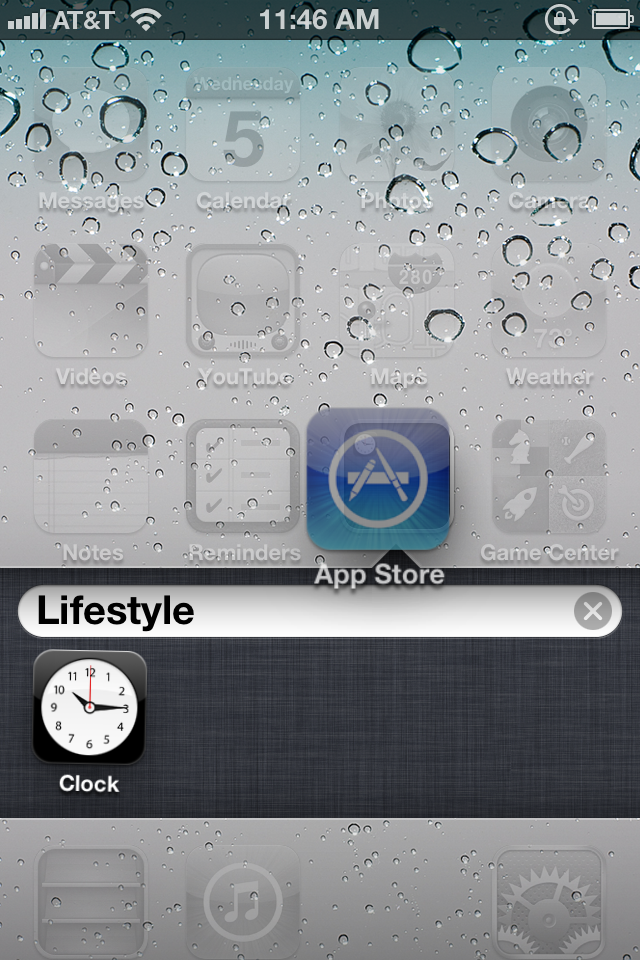

Drag an app icon on top of another app icon to create a folder.

To create a folder, start by tapping and holding any app icon to enter edit mode; after the icons begin to wiggle, drag an app on top of another app. When you release the app, you’ll create a folder, which will open and display both apps. By default the folder is named based on the App Store category for one of the first two apps in the folder. If you want to customize this name, just tap inside the field (while still in edit mode) and enter something new. When you’re done, press the Home button to exit edit mode.
To add another app to the folder, reenter edit mode and drag the desired app onto the folder icon. Repeat until you’ve added all the apps you want (up to 12 per folder on the iPhone or iPod touch; 20 on the iPad), and then press the Home button to exit edit mode.
To edit the folder itself, its name, contents, or the layout of the apps inside, you can either enter edit mode and then tap the folder, or, while the folder is open, tap and hold any icon inside. You can then tap the folder’s name to change it, drag apps within the folder to rearrange them, drag an app out of the folder to return it to the Home screen, or tap an app’s Delete button to completely delete it from your device. Unlike apps, folders don’t have a Delete button; to delete a folder, you must remove all the apps from it.
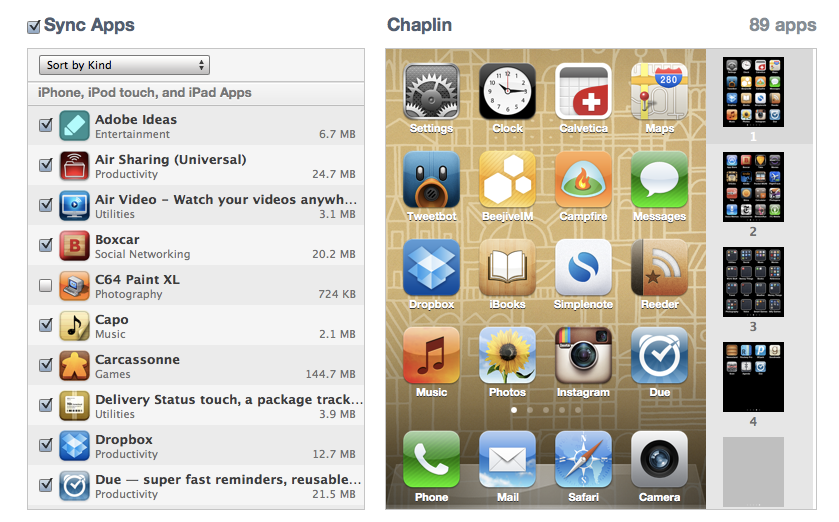

You can rearrange your apps, add folders, and remove programs through iTunes.

Manage folders from iTunes: iTunes has long allowed users to manage installed apps when syncing, and you can edit your folders too, using your mouse and keyboard. When your device is connected to your computer, the Apps tab in iTunes lets you choose which apps to sync, as well as decide how to organize these apps. Drag an app onto another app and, after a slight delay, a folder is created—just as if you’d performed the same action on your device. You get the same editable folder name, and you can rearrange icons within the folder. Since you’re using a computer, you don’t need to click and hold to enter the jiggling-icon edit mode; you can click and drag anytime. Similarly, to edit an existing folder, just double-click it.

Multitask on your iOS device

Opening and closing an app is easy: Tap the app to open it, and then press the Home button to close it. But when you exit, you’re not actually shutting down the app: You’re freezing it in place, or sending it to run in the background. This means you can have multiple active apps running at any one time, and you can even switch between active apps without returning to the Home screen.
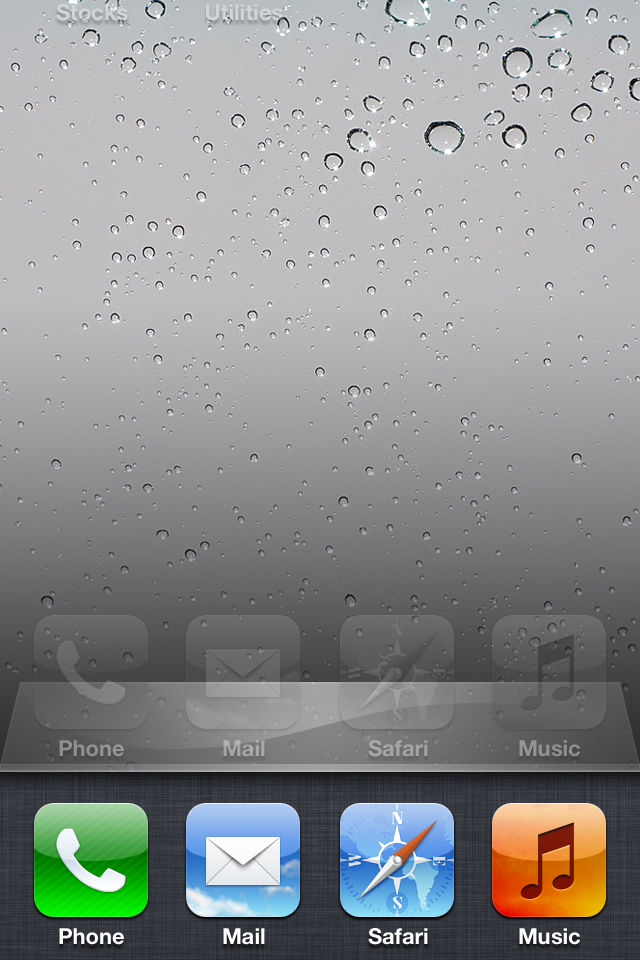

Double press the Home button to pull up your device's multitasking bar.

Frozen apps versus background apps: Sometimes you need an app to keep doing something when it’s not in the foreground. For that reason, Apple allows apps to perform tasks in the background using several tools. One of these tools is the push-notification system; another allows music apps to keep playing while the user switches to another app; yet another allows tasks, such as photo uploads, to continue running in the background even if you switch out of the program performing the upload. If your third-party app doesn’t incorporate one of these background features, it will “freeze”, which is to say it will remember whatever you were just doing when you re-open it, but will not process any data in the background.

The multitasking bar: You can quickly switch between apps by bringing up the multitasking bar. To do so, quickly double-press the Home button; a bar below the Dock will rise up from the bottom of the screen, showing off the apps most recently run. To switch to a different app, tap its icon.
Multitasking shortcuts: In addition to holding a list of your most recently used apps, the multitasking bar has a couple of other neat shortcuts for your device. 
If you swipe up from the bottom with one finger, you’ll bring up a secondary set of controls. On the iPhone or iPad, you can control the music currently playing on your device,  (it defaults to the Music app, but you can also control music from third-party apps). 


device's brightness, slider for controlling volume.  Airplane mode, wi-Fi, bluetooth, do not disturb, AirDrop, flashlight, Calculator, camera, lock.
If you're interested I also have a another blog title iphone and ipad apps for the blind.

Friday, March 27, 2015

Want to know how to maximise the battery life on your iPhone

iPhone and iPad Apps for the Blind And Visually Impaired; Want to know how to maximise the battery life on your iphone:

Sometime ago we did an article on 11 ways to conserve your battery with iOS 7 . Those who were running iOS 7 I hope red that existing article and followed some of those steps. This article expands on things that you can do with iOS 8. If you are new to IOS or did not read the article here are the key things we covered.  Background App Refresh  Location-Tracking Apps  Parallax  Automatic Updating  Turn Off AirDrop  Stop searching for Wi-Fi  Turn Down the Brightness  Spotlight   Disable location services (for apps that don't need it)   Go on a push notification diet   Don't push; fetch

 If you like Steph I step instructions on each one of the steps please go to 11 Ways to Stop iOS 7 From Killing Your iPhone Battery


Want to know how to maximise the battery life on your iPhone or iPad? In this guide we'll share some advice to help keep your phone alive for as long as humanly possible.

It's written with iOS 8 in mind, which adds new features to assess your battery usage. And some new fancy features that will guzzle your battery fast if left unchecked.


Battery usage

First things first, you want to see what is killing your battery in the first place. iOS 8 lets you assess your battery drain on an app-by-app basis so you can easily detect energy hogs.

Simply go into the Settings app, choose 'General', tap 'Usage', and go into 'Battery Usage'. From here you can see the time since last full charge and battery usage in the last day and week.

If one app is taking up a lot of battery you may want to turn off that app's background refresh or notifications, or stop using it altogether.


Background app

Background App Refresh, which was added in iOS 7, is a way for apps to get new data when not in use, so they're up to date as soon as you load them.

It's a cool feature, but it can be a major battery drain. Either turn off individual apps that you don't need to update continually, or shut off the feature entirely. You can find it in 'General', 'Background App Refresh' in the Settings app.

Think about the way you use each app. It takes a couple seconds to grab your latest tweets when you load up a Twitter client - do you need to continuously update your timeline when you're not using it?


Location services

Location Services are another battery hog. Open Settings, go to 'Privacy', and find 'Location Services'.

Keep it on for apps where you want it to know your location. If you like to share your location when you Tweet, keep it on for Twitter. But if you never use IMDB's cinema show times feature, revoke its access to your location, here.


Push notifications

Push notifications can also hurt your battery life. And like background app refresh and location services, you've probably got some turned on that you don't need.

To tweak these settings open the Settings app and choose 'Notifications'. Now you'll see a list of every installed app that can send notifications. Go into apps that you don't care about and uncheck 'Allow Notifications'.


Fetch

You have more options when dealing with the default Mail app. Find 'Mail, Contacts, Calendars' in Settings and tap on 'Fetch New Data'.

Push email will send emails from the mail server to your iOS device as soon as they arrive, which can hurt your battery. You may wish it to turn this setting off and use a fetch schedule.

This only looks for emails every 15 or 30 minutes, or every hour, or only when you go into the Mail app and refresh your inbox. Use whichever suits you best.


Kill apps

A couple tips from ex-Apple Genius Bar staffer Scotty Loveless, who has got a huge and exhaustive guide to battery drain if you want even more information.

First, stop manually closing all your apps. For starters, it's unnecessary: iOS is automatically juggling memory, putting apps in suspended animation, and killing unused memory hogs all by itself.

But more importantly for this article, constantly having to load and unload apps from your phone's random access memory is bad for battery. "All of that loading and unloading puts more stress on your device than just leaving it alone', says Loveless.


Airplane Mode

Another tip from Loveless: using your iPhone when you're in an area with crappy service can also kill the battery as the phone puts strain on its antenna to try to keep receiving phone calls and text messages.

If you're in the middle of nowhere (or inside a building that cuts off phone signal) and you don't need to use the phone right now, turn on airplane mode.

Plus, you can actually turn wi-fi back on after you enter airplane mode to continue using the web.


Brightness

Changing your screen brightness can have a massive impact on your phone's battery life. Keeping it at the highest setting is a sure fire way to drain your battery (and destroy your corneas).

Set it to about 60 percent. You'll soon get used to it, and you can squeeze many minutes of battery out of your device.


When your iPhone or iPad battery is running low and you do not have a charger nearby, you could switch the device’s full-color screen to grayscale mode to extend its battery life. This feature is also great for those who are completely blind and do not need the color screen. 
Go to the Settings app on your phone. Inside the app, scroll down, and choose the General setting. Among the numerous options available under the General option, we are only looking for theAccessibility option. This is the hub for many settings which improve the usability of the device. inally, turn on the Grayscale option which can be found under the Vision section. As soon as you activate the feature, your device’s screen will turn to grayscale mode. 

The results may not be obvious in the Settings screen since the background is white already. However, when you go back to the home screen, you will notice that all the icons are displayed in black and white.


Please note that the feature affects the screen only. If you take a screenshot, the results will be in full-color.

Monday, March 16, 2015

Evolution of the iPhone & iOS Home Screen


The visual change between iOS 7 and iOS 6 is obviously significant, and this graphic does a great job of showing just how the iOS home screen has evolved over time with the iPhone. Covering versions 1.0 through 7.0 and a time period of 2007 to 2013, it gives an interesting look into how things have changed in the past and how they are changing now:  


When set alongside each other like this the newest changes with 7 look less drastic, but certainly much brighter and more colorful than before. In some ways the iOS 7 home screen has more commonality with the original 1.0 through 3.0 releases than the more recent 4, 5, and 6 builds, at least in flatness and the Dock design. If you want to get a preview of what 7.0 will look like on your iPhone or iPod touch, load these iOS 7 preview videos and screen shots on your iOS device, they do a fairly good job of what to expect, A lot has happened since 2007. Just look at how much the iPhone home screen has changed. Or how little it has? Back in the days of the first iPhone (it wasn't even called iOS yet), we couldn't get third party apps or even move apps around. Now, we have a bigger screen and all these funktastic icons.

It is impressive to see the consistency (or is it stubborness) that Apple has had with the iPhone home screen. Reddit user iKurac cooked up this graphic* to show the gradual additions and slow evolution of iOS over the years. Up until iOS 7, 

it's only added new apps. Now that iOs 7 is released , iOS 1 to iOS 6 will be part of the ancient era of iPhone. Something that'll be buried in a time capsule next to Android 1.0, Blackberry, Palm and Windows Mobile.

Friday, October 3, 2014

The Apple iphone 3g

The Apple iphone3g

Apple iPhone 3G MobilePhone 3G's back featured a redesigned plastic polycarbonate housing, replacing the aluminum back of the first generation. Buttons were changed from plastic to metal, and the edges of the phone were tapered, providing a better grip. The iPhone 3G introduced the first official color options for the outer casing, with the 16GB version available in black and white.
The dimensions of the iPhone 3G were slightly larger than those of the original iPhone. It was 116 millimetres (4.6 in) high, 62 millimetres (2.4 in) wide, and 12 millimetres (0.47 in) deep, compared to its predecessor, which was 110 millimetres (4.3 in) high, 61 millimetres (2.4 in) wide, and 12 millimetres (0.47 in) deep (HVGA) resolution at 163 ppi, with scratch-resistant glass sitting on top of the display. The capacitive touchscreen was designed for a bare finger, or multiple fingers for multi-touch sensing.
The device featured the same sensors as its predecessor. The proximity sensor (which deactivates the display during calls when the face is near) was repositioned to save battery power and to prevent inadvertent inputs from the user’s face and ears. An ambient light sensor was included to adjust the display brightness for different lighting conditions, which helps save battery power. A 3-axis accelerometer was included to sense the orientation of the phone and change the screen accordingly, allowing the user to easily switch between portrait and landscape mode.
On the rear of the device, the iPhone 3G featured the same fixed-focus 2.0 megapixel camera of its predecessor. It had no optical zoom, flash, or autofocus, and did not support video recording (though various applications became available to allow video recording on the device). The iPhone 3G's operating system also now supported the geotagging of photographs.Apple iPhone 3G adds support of 3G HSDPA fast data and GPS. It has the same screen, camera, OS and memory (8 or 16GB) as the first one, and almost the same design but now will accept any 3.5mm headphones. It will run on the new software version which support third party application thanks to the official SDK.The iPhone 3G came preloaded with the latest version of iPhone OS to offer users the newest and most capable software. The device continued to receive updates to its software for over two years, with major iterations released on an annual basis. However, the phone had access to a decreasing proportion of new features with each update as its hardware became superseded by later models.
At launch in July 2008, the iPhone 3G came preloaded with iPhone OS 2.0. This introduced the App Store, Microsoft Exchange ActiveSync support, Apple’s MobileMe service, and push email support, along with other new features and bug fixes.
In June 2009, iPhone 3G users received the iPhone OS 3.0 software update, which introduced the long-awaited MMS feature, copy and paste, landscape support for more applications, Bluetooth stereo support, and other improvements.
In June 2010, users received the iOS 4.0 software update. Unlike owners of its successor models, users of the iPhone 3G did not gain access to important features included with iOS 4.0 such as multitasking, the ability to set a home screen wallpaper, or Bluetooth keyboard support. However, it did provide access to a unified mailbox feature, homescreen folders to better organise apps, playlist creation, and other enhancements. This update was widely criticized by users of the iPhone 3G for slow performance, though an updated iOS 4.1, released September 2010, improved this problem. However, unlike more modern iOS devices, this update again did not provide iPhone 3G owners with access to important features, in this case the Game Center application.
On November 23, 2010, the iPhone 3G received the iOS 4.2 software update, which included new features such as YouTube voting, and security fixes. However, the iPhone 3G was unable to use many features included in this update, such as AirPlay and Safari Text Search.
The last release of iOS to support the 3G model was 4.2.1, released on November 22, 2010. iOS 4.3, released on March 11, 2011, did not support the iPhone 3G, with Apple discontinuing further updates.[12]
A key enhancement introduced with iPhone OS 2.0, and therefore an important feature of the iPhone 3G, was theApp Store , an iconic way to find and install third-party applications on users' devices. Before this feature was introduced, the only way to install custom applications on the device was via jailbreaking, which is strongly discouraged and unsupported by Apple. There were 500 applications available for download at the launch of the App Store, though this amount has grown dramatically since then.
To see more on the future of the Apple iPhone click here.

Wednesday, September 17, 2014

The History of Apple iPhones: Apple finally announces smartwatch, but it's not an iWatch! It is called "Apple Watch".

Apple finally announces smartwatch, but it's not an iWatch! It is called "Apple Watch".


ACCESSIBILITY IMPLICATIONS OF APPLE WATCH EVENT

Apple unveiled its first smartwatch on Tuesday. The move was hotly anticipated, as Apple enters a competitive and rapidly expanding market. 

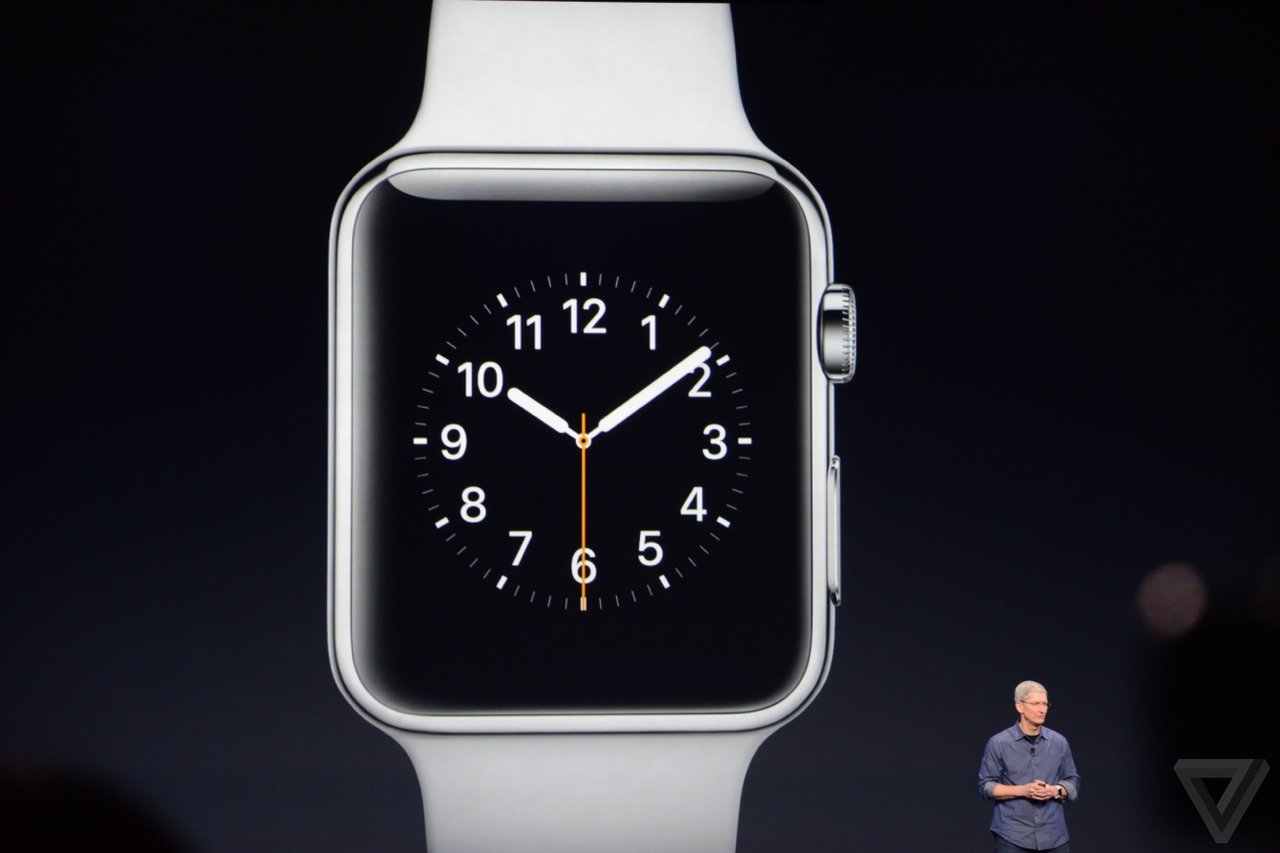
People have  been speculating about it for over a year, but Apple has finally unveiled its first foray into wearable technology. The Apple Watch (yep, not the iWatch), is an Apple-made smartwatch that was shown off during Apple's 9 September iPhone 6 event, with a new dial called the crown, close integration with iCloud and Siri and a flexible sapphire display. The new watches will be available starting in early 2015,"Apple introduced the world to several category-defining revolutionary product that can enrich people's lives.  products, the Mac, iPod, iPhone and iPad," 

 Apple announced the iPhone 6 and iPhone 6 Plus, the Apple Watch, and a brand new ApplePay tap-to-pay system to replace credit cards. Separately and together there are enormous accessibility implications for these announcements.

 Here’s what I’ve put together sofar …
Firstly, I’m not going to list everything that was announced – for that you can watch the recording of the lifestream or read The 15 Most Important Announcements From The Apple Watch iPhone 6 Event. I’m just going to talk about the things that are relevant to accessibility in some way.
Lastly we have the Apple Watch, not due for release until early 2015, and a device that has left us with more accessibility questions than accessibility answers at the moment.
apple-watch
On the bonus side of the equation is “tactic” feedback via gentle vibrations on your wrist. This could be a really enormous bonus for many users, and the webpage also describes a “subtle audio” alternative for those who don’t want or can’t use vibrations.
Control via a “digital crown” – the button an analogue watch uses for setting or winding it – as well as a button on the side and touch-screen controls are both a plus and a minus in accessibility terms. Having a physical control mechanism makes things easier to use for some users but makes them completely inaccessible for others – users who can only use a stylus or mouthstick to access their iPhones and iPads won’t be able to manipulate a digital crown.
The Apple Watch will let you use Siri simply by lifting your wrist, or alternatively trigger Siri by pressing and holding the digital crown. None of the videos showed Siri responding verbally but since an Apple Watch can only be used in combination with an iPhone, verbal responses through the iPhone should be possible I would think.
Just having the Watch on your wrist is an accessibility bonus too – as I was writing this my phone rang and I dropped it as I struggled to get it out of my pocket fast enough to answer it. Being able to accept a call by touching my wrist would remove the urgency, and Apple says that the iOS 8 Handoff feature means I can still transfer that call to the iPhone as soon as I wrangle it out of my pocket if talking to my wrist isn’t my style.
Pulse monitoring is a big accessibility plus for me personally, too, since I have a disorder that frequently messes up my pulse rate and requires lots of pulse checking. I would think there are medical possibilities here too.
The watch bands look to be fairly good for physical accessibility in terms of taking the watches on and off – there are several options but mostly of them use magnets for closure so they are a lot less fiddly than a traditional buckle-up watch clasp.
Three apple watches with different bands.
The Apple Watch has a variety of different bands, all of them are fairly easy to do up compared to a traditional buckle-up watch.
On the big negative side, the Apple Watch is water resistant but it isn’t waterproof. For users who have memory or cognition problems that would prevent them realising they need to take it off, or users who have physical impairments meaning they can’t remove the watch and put it back on independently, this could be a big deal – especially since dunking a watch could set you back more than $350!
Everything else is still fairly unknown – will the watch be accessible to blind users? Will there be assistive touch alternatives for those who can’t manipulate the physical buttons? Will there be guided access alternatives? Low vision access options? My experience with Apple tells me that these things will all probably come over time, but they might not be there from day one, which is a big deal for disabled users who are as enthusiastic as anybody about Apple products and want to experience new technology. I sincerely hope that Apple informs us about these things as soon as possible, and has good answers!
We know how it will charge (but not how long it will stay charged)
One of the features Apple touted on Tuesday is the watch's inductive charging system. 
Users will be able to charge an Apple Watch by connecting a cord magnetically to the back of the watch body.
But notably absent was any mention of how often you'll have to juice up your watch. Battery life has been a big issue among the smart watches on the market. According to the Verge, the charges among the smart watches on the market have ranged from a few hours to a week long. However, the longer-lasting ones have been more rudimentary than the Apple Watch: black-and-white displays that aren't touch screens, for example.
A glance at the newest competitors shows what the Apple Watch will be up against when it comes out in early 2015. Sony's latest offering, the SmartWatch 3, can last two days on one charge, according to the Guardian. Meanwhile, Motorola's Moto 360, was lambasted upon its release for its disappointingly short battery life. Gizmodo found that it lasts "24 hours plus."

 Users will learn a new language of watch vibrations

Consider it the Apple Watch's own system of Morse Code. The watch will do turn-by-turn directions, but instead of making you listen to Siri's voice or stare at your watch screen to know where to go, it will simply tell you by feel. One type of vibration will let you know it's time to turn left. Another will tell you it's time to turn right.
The iPhones that the Apple watch will work with is
IPhone 5C, iPhone 5S, iPhone 6, plus, iPhone 6


To learn more in detail about the Apple watch please go to the link below.

Wednesday, September 10, 2014

Apple finally announces smartwatch, but it's not an iWatch! It is called "Apple Watch".


ACCESSIBILITY IMPLICATIONS OF APPLE WATCH EVENT

Apple unveiled its first smartwatch on Tuesday. The move was hotly anticipated, as Apple enters a competitive and rapidly expanding market. 

People have  been speculating about it for over a year, but Apple has finally unveiled its first foray into wearable technology. The Apple Watch (yep, not the iWatch), is an Apple-made smartwatch that was shown off during Apple's 9 September iPhone 6 event, with a new dial called the crown, close integration with iCloud and Siri and a flexible sapphire display. The new watches will be available starting in early 2015, "Apple introduced the world to several category-defining revolutionary product that can enrich people's lives.  products, the Mac, iPod, iPhone and iPad," 

 Apple announced the iPhone 6 and iPhone 6 Plus, the Apple Watch, and a brand new ApplePay tap-to-pay system to replace credit cards. Separately and together there are enormous accessibility implications for these announcements.

 Here’s what I’ve put together sofar …
Firstly, I’m not going to list everything that was announced – for that you can watch the recording of the lifestream or read The 15 Most Important Announcements From The Apple Watch iPhone 6 Event. I’m just going to talk about the things that are relevant to accessibility in some way.
Lastly we have the Apple Watch, not due for release until early 2015, and a device that has left us with more accessibility questions than accessibility answers at the moment.
apple-watch
On the bonus side of the equation is “tactic” feedback via gentle vibrations on your wrist. This could be a really enormous bonus for many users, and the webpage also describes a “subtle audio” alternative for those who don’t want or can’t use vibrations.
Control via a “digital crown” – the button an analogue watch uses for setting or winding it – as well as a button on the side and touch-screen controls are both a plus and a minus in accessibility terms. Having a physical control mechanism makes things easier to use for some users but makes them completely inaccessible for others – users who can only use a stylus or mouthstick to access their iPhones and iPads won’t be able to manipulate a digital crown.
The Apple Watch will let you use Siri simply by lifting your wrist, or alternatively trigger Siri by pressing and holding the digital crown. None of the videos showed Siri responding verbally but since an Apple Watch can only be used in combination with an iPhone, verbal responses through the iPhone should be possible I would think.
Just having the Watch on your wrist is an accessibility bonus too – as I was writing this my phone rang and I dropped it as I struggled to get it out of my pocket fast enough to answer it. Being able to accept a call by touching my wrist would remove the urgency, and Apple says that the iOS 8 Handoff feature means I can still transfer that call to the iPhone as soon as I wrangle it out of my pocket if talking to my wrist isn’t my style.
Pulse monitoring is a big accessibility plus for me personally, too, since I have a disorder that frequently messes up my pulse rate and requires lots of pulse checking. I would think there are medical possibilities here too.
The watch bands look to be fairly good for physical accessibility in terms of taking the watches on and off – there are several options but mostly of them use magnets for closure so they are a lot less fiddly than a traditional buckle-up watch clasp.

Three apple watches with different bands.
The Apple Watch has a variety of different bands, all of them are fairly easy to do up compared to a traditional buckle-up watch.

On the big negative side, the Apple Watch is water resistant but it isn’t waterproof. For users who have memory or cognition problems that would prevent them realising they need to take it off, or users who have physical impairments meaning they can’t remove the watch and put it back on independently, this could be a big deal – especially since dunking a watch could set you back more than $350!
Everything else is still fairly unknown – will the watch be accessible to blind users? Will there be assistive touch alternatives for those who can’t manipulate the physical buttons? Will there be guided access alternatives? Low vision access options? My experience with Apple tells me that these things will all probably come over time, but they might not be there from day one, which is a big deal for disabled users who are as enthusiastic as anybody about Apple products and want to experience new technology. I sincerely hope that Apple informs us about these things as soon as possible, and has good answers!
We know how it will charge (but not how long it will stay charged)


One of the features Apple touted on Tuesday is the watch's inductive charging system. 
Users will be able to charge an Apple Watch by connecting a cord magnetically to the back of the watch body.
But notably absent was any mention of how often you'll have to juice up your watch. Battery life has been a big issue among the smart watches on the market. According to the Verge, the charges among the smart watches on the market have ranged from a few hours to a week long. However, the longer-lasting ones have been more rudimentary than the Apple Watch: black-and-white displays that aren't touch screens, for example.
A glance at the newest competitors shows what the Apple Watch will be up against when it comes out in early 2015. Sony's latest offering, the SmartWatch 3, can last two days on one charge, according to the Guardian. Meanwhile, Motorola's Moto 360, was lambasted upon its release for its disappointingly short battery life. Gizmodo found that it lasts "24 hours plus."

 Users will learn a new language of watch vibrations

Consider it the Apple Watch's own system of Morse Code. The watch will do turn-by-turn directions, but instead of making you listen to Siri's voice or stare at your watch screen to know where to go, it will simply tell you by feel. One type of vibration will let you know it's time to turn left. Another will tell you it's time to turn right.
The iPhones that the Apple watch will work with is
IPhone 5C, iPhone 5S, iPhone 6, plus, iPhone 6


To learn more in detail about the Apple watch please go to the link below.


Monday, September 8, 2014

It's like Christmas Eve for Apple fans:


It's like Christmas Eve for Apple fans: Tomorrow, the company is expected to unleash its biggest product launch of the year. What will we see at the big event? Apple hasn’t been shy about stoking the fires for its Tuesday event in Cupertino, which will likely see the introduction of the iWatch and the iPhone 6. In many ways, it’s a new chapter for Apple.

Despite the hype that always accompanies the staging of an Apple event, only a handful of them over the past decade have truly mattered. It seems pretty clear that next Tuesday’s event is going to fall into that category, based on the way Apple has handled the run-up to it and the fact that we’re about to enter a new era for the storied company.

You can count those ground-breaking events from the last ten years on one hand: the 2005 iPod nano event, the 2007 Macworld that introduced the iPhone, the 2008 event that revealed how the App Store would work, and the 2010 iPad event. Sure, there were other notable moments during that period (and plenty before then) but those were the events that truly made people realize how Apple was defining the current generation of personal computing.

Something to talk about

It looks as if the new product category that Apple watchers have been clamoring for since Tim Cook became CEO in 2011 is here, in the form of what we’ll call the iWatch. We don’t know what it looks like or exactly how it will work, but we know that it will pair with the iPhone and we know that it will serve as a landmark product for those who have wondered if Apple could sustain its amazing run of innovation as we approach the third anniversary of Jobs’ death.

iWatch, 
At the event. Most of the chatter on the web reveals that the iWatch won’t be only about health and fitness, but also about good looks, aesthetics and luxury. In fact, Apple is believed to invited top fashion editors and bloggers in unprecedented numbers to its launch gala. 
Apple's first wearable gadget could beam messages, Facebook updates, simplified apps and Siri to our wrists, eliminating the all-too-common need to take out our devices to constantly check notifications.
It's going to become especially convenient to pocket the all-but-confirmed 4.7-inch and even bigger 5.5-inch iPhone 6 in your jeans, and always stow the next 9.7-inch iPad Air 2 in a bag later this year. At the same time, iWatch leaks have pointed to Nike FuelBand SE-inspired fitness tracking and biometric sensors. Apple could possibly take more cues from the sneaker maker instead of its smartwatches rivals.


iPhone 
Though Apple is planning to unveil two iPhones tomorrow, in 4.7 and 5.5-inch varieties, there's been surprisingly little information on what the two devices might be called. According to a new report from Mac Otakara [Google Translate], Apple will refer to the smaller 4.7-inch iPhone as the "iPhone 6," while the larger 5.5-inch version will be called the "iPhone 6 Plus." 

It is unknown what source Mac Otakara derived its information from, but the site has provided accurate predictions in the past. MacRumors has also heard the iPhone 6 and iPhone 6 Plus monikers from a second source, but it remains unclear if that is indeed Apple's naming plan. 
Tuesday’s event will be one of those crossroads events: one that we’ll remember either as a day Apple articulated a new vision for computing that we’ve been waiting for someone to advance — or as a sign it has overreached.

Here is a great articles to read.

The post-Steve Jobs era of Apple will officially begin on Tuesday. Here’s why.

Apple iWatch launch tomorrow: Everything we know so far.

Apple's Larger Phones May Be Called iPhone 6, iPhone 6 Plus