Tuesday, September 12, 2017

Apple iPhone 8 and 8Plus introduced with new features

Published on Sep 12, 2017Apple introduced its latest iPhone 8 and 8Plus which comes with some upgrades over its predecessor including a faster processor, improved camera, and augmented reality capability.

Monday, June 26, 2017

Automatic Setup in iOS 11

https://youtu.be/RJdsuUVuzgg

Published on Jun 19, 2017In iOS 11 it is now possible to use an existing iOS device to set up a new one. Here is Automatic Setup in iOS 11!

Friday, May 19, 2017

iPhone 7 is the Future of Tactile Accessibility

The iPhone 7 may go down in history as The One That Didn't Have The Headphone Jack. But there are other reasons for it to be considered a memorable part of the iPhone's lineage.


Haptic Feedback


Here's a great example of Apple's prior haptic success: 


  Addition to hearing an audible ring when a call comes in, you can also turn on Vibrate on Ring. 


How to turn on Haptics

IMG_1548.JPG

(Settings > Sounds & Haptics > Vibrate). What this will do is give you  tactile feedback that someone's calling in addition to hearing the ringer. 


Yo may not always hear your phone ringing, but You more likely to feel it

  buzzing in your pocket.  Especially if you  are in a very noisy environment.

 This is a real boon for accessibility. 


With the"tactile" interface  Apple has make the iPhone more accessible. With the iPhone 6s and especially the iPhone 7, Apple has further utilized its Taptic Engine in various ways across iOS that make using the device an even more pleasant and enriching experience.


How haptics shape the iPhone 7

The iPhone 6s last year introduced 3D Touch. With Quick Actions and Peek & Pop, users could use their favorite apps more quickly and efficiently, all with a subtle buzz from the Taptic Engine. But 3D Touch also was interesting from an accessibility point of view as well: Not only is 3D Touch convenient, it can save users from eye strain and/or muscle fatigue due to excessive searching and tapping. 

With the iPhone 7 and iOS 10, Apple has expanded both 3D Touch's scope and how haptic feedback responds throughout the operating system. You can now use 3D Touch on certain icons in Control Center, as well as manage the status of downloading apps. On the iPhone 6s and 7, you feelControl Center or Notification Center being invoked with a quick thud as you slide the pane up or down; on the iPhone 7, the date picker in the Clock app registers bits of feedback as you move through time. Even enabling or disabling setting toggles now include a physical tick.


The effects of the iPhone 7's Taptic Engine are pervasive and add another layer of interaction. This can bring complexity, yes — but for many people with disabilities, being able to literally feel your way through the OS means a lot. To see the green "on" indicator for iOS 10's settings switches is one thing; to see green and feel the status change as you slide it over is a horse of a different color. If you, like me, can't see so well, that literal feeling of reassurance makes all the difference.


It isn't just Apple's internal apps, either: The Taptic Engine API for iPhone 7 gives third-party developers the power to enhance their apps to make them even more engaging and accessible than they already are.


The Home button (in name only)


No discussion of the iPhone 7 and haptic feedback is complete without mention of another of its banner features: the solid state Home button. 


The Home button really is a "button" in name only: Unlike the physical buttons of yore, the iPhone 7's Home button no longer works mechanically. Instead, Apple uses its Taptic Engine to render "clicks" of varying degrees. (Users can determine which degree they prefer — 1, 2, or 3 — in a way similar to how 3D Touch is configured.) It reminds me a lot of the Force Touch trackpads on the 12-inch MacBook and the MacBook Pros.


Although it does take some getting used to, and there are reasonable arguments for keeping the old mechanism, the new Home button does have real advantages when it comes to accessibility. For one thing, not having to physically press the button should make life easier on users with limited range of motion and/or low muscle tone in their fingers. This is exactly why motor-centric accessibility features like AssistiveTouch or Switch Control exist; for many people, it's easier to tap and touch than it is to press with even the tiniest bit of force. What's more, the granularity Apple provides for adjusting the Home button's sensitivity should go a long way in helping users figure out which setting works best for them. (I'm still figuring this out myself.)


Another advantage is the haptic feedback: When you press the button to go back to Springboard, invoke Siri, or whatever else, it "buzzes." Again, it's all about multi-sensory output: Not only do users see the UI switching back to, say, the Home screen, they also feel a little buzz that lets them know the action (returning Home) has been triggered. That extra cue is a huge win for accessibility and key to the bimodal experience. If you can't see well, the Taptic Engine is still there for you, saying "Yes, you pushed the button. Something will happen now."


Feeling the future


It should be noted that, because needs and tolerances vary widely, not everyone with a disability will reap benefit from haptic feedback. Someone with autism who may be sensitive in terms of sensory motor development likely won't appreciate the iPhone 7's ticks and buzzes. But that's why you can disable System Haptics: You can configure the best experience for your needs.


Still, in my brief time with an iPhone 7 Plus, I'm very much enjoying the use of haptic feedback throughout the device. As with Apple Watch, the Taptic Engine gives me a more immersive, enjoyable, and — most importantly — accessible experience. There are areas where it can improve; I'd love to get feedback when I tap a Back button, for instance. But overall, I'm bullish on Apple's and developers' future plans for this technology.


Thursday, April 13, 2017

NEW iPhone 7 Plus Blind Girl Unboxing ◌ alishainc

What’s New in iOS 10 Accessibility for Blind, Low Vision Users

Mainstream Stuff Impacting Accessibility

Wow, Siri Can Do That?

One of the major enhancements in iOS 10 is the development of SiriKit. Specifics aren’t really known about this exact functionality just yet, as SiriKit-enabled apps are only being released alongside the public version of iOS 10. However, what we do know is that there are many potential benefits to SiriKit. For example, if Uber were to implement SiriKit, one could simply tell Siri, “book an Uber for me to go to Central Park”. In theory, at least, Siri should now be able to carry out that exact action. According to this article, apps that will utilize SiriKit the day iOS 10 is released are WhatsApp, LinkedIn, WeChat, Pinterest, Vogue Runway, Pikazo, Square Cash, Monzo, Slack, Looklive, Lyft, Fandango and The Roll. It’s not possible to know how each app will utilize Siri Kit remains, I’m sure someone will cover it in great detail by the time you are reading this article.

Describe it for Me, Please?

Another major change is that iOS will now attempt to add automatic image descriptions to your photos. According to a presentation as part of the World Wide Developer Conference, iOS performs eleven billion calculations per picture to determine what objects are in your photos. It cannot only detect objects, but also facial recognition which can then compare pictures in your lists of contacts to tag people automatically. Indeed, it is now included as part of the information on each photo in my library. While Apple indicated that your photos are not sent to a server for recognition—meaning that it’s all done on your device—it’s not clear to me how long it takes for these descriptions to show up.

Press Home to Unlock

In iOS 10, you can now unlock your iDevice simply by pressing the Home button. While this was always possible on Touch ID-equipped devices, it is now possible on non-Touch ID devices as well. If you do not have a passcode set up, pressing the Home button, waiting for a second, and then pressing it again will now land you on the Home Screen of your device. If you find that you prefer the older way of unlocking your device, you can still do this. Head over to Settings>General>Accessibility>Home Button>, and turn “rest Finger to open” on.

I read you loud and mostly clear

Another new feature in iOS 10 is the introduction of Voice Mail transcription. For those who can’t hear their voice messages, or for those who just don’t want to listen to the phone, it’s no longer mostly required. It is, however, necessary, to play the message to make the transcription show up. You will find the transcribed text next to the “More Info” button. The transcription is fully accessible with VoiceOver and braille, but comes with the same caveats any automatic transcription does: it’s not 100% accurate, and any kind of noise or accent will greatly decrease accuracy.

Raise to Shut up?

There is a new feature in iOS called “raise to Wake” which wakes up your phone each time you pick it up. It also sometimes will wake up when unwanted. While this may be a welcome feature for many, especially for VoiceOver users utilizing speech, it may be annoying. You can turn “raise to Wake” off if you would like. You will find the ability to turn this on and off under Settings>Display & Brightness.

VoiceOver

Moving Apps is No Longer a Drag!

When you get to your Home screen with iOS 10 and VoiceOver is enabled, you will now hear that there are Rotor actions available; these options relate to moving apps. Rotor over to the "Actions" item, then flick up or down to the "Arrange app" action and double tap. This puts you in “Screen Edit” mode, just as if you had used the old "double tap and hold" method to begin editing apps. Next, find an app you wish to move, then flick up or down once to specify your desire to move this app. (You can also perform a two-finger double tap on an app to mark it as being ready to be moved.) Now, you can freely move around your home screen, even changing pages if you prefer, until you find exactly where you would like to move the app you chose. Once you locate the place where you would like to put the app, flick up or down to see different options: you can move it to the right of the app VoiceOver currently has focus on; move it to the left of VoiceOver's current position; create a folder with those 2 apps; or cancel the move entirely. Canceling will place you on the page you are currently editing, and the app you chose to cancel the move for returns to its original place. (Pressing the Home button to exit Screen Edit mode will also cancel any app move you had in progress.) Even better still is the fact that this system works great with both Bluetooth keyboards and braille displays!
To more go to applevis.com

Wednesday, November 23, 2016

Chelsea Ann Stark: Hotmail And iPhone4s Frenzy


Chelsea Ann Stark: Hotmail And iPhone4s Frenzy
If you have a Hotmail email account you probably went through this Tuesday, November 22, 2016.
To read this post please go to http://chelseaannstark.blogspot.com/2016/08/hotmail-and-iphone4s-frenzy.html

Wednesday, November 2, 2016

Apple Pay: help people who are blind or vision impaired to be more independent

I


ANZ bank is already on board with Apple Pay within Australia. Why are all the other banks with in Australia taking longer to follow suit?

Bringing apple pay to all banks can make a big impact on peoples lives, particularly those who have disabilities. Using one device instead of keeping track of several cards makes paying easy for everyone.

Apple pay makes paying Simple, secure and private. Gone are the days of searching for your wallet and the wasted moments finding the right cards which are not accessible for people who are blind or vision impaired due to the pore font size and the colour contrast of the cards which are issued to us by our bank providers.

The other good thing about apple pay is your card details are never shared when you use Apple Pay. In fact, they aren’t stored on your device at all!

With your signature, your not only helping people who are blind or vision impaired. Your helping everyone in the general public.

Monday, July 25, 2016

How to fix iPhone battery life in the age of Snapchat and Pokémon Go ByiiMore

How to fix iPhone battery life in the age of Snapchat and Pokémon Go
As more users spend their days in battery-demanding apps, Apple needs to consider evolving battery life to meet that demand.
 
So, how can Apple and the iPhone evolve to handle them?

Saturday, April 9, 2016

iPhone SE proves size doesn’t matter [Reviews

It feels good to downsize. 
Photo: Sam Mills/Cult of Mac
I forgot how good it feels to hold 4 inches of magic in my hands.
Spending the past year and a half with the luxurious 5.5-inch screen of the iPhone 6 Plus and 6s nearly convinced me that bigger really is better. But after using the iPhone SE, I’m starting to rethink everything I love about iPhone.
The moment I clasped the iPhone SE it was like reconnecting with an ex-lover. Everything is familiar and yet it has somehow improved in nearly every single way. I’ve been re-captivated by its beauty, brains, and brawn all over again, even though on the outside, it looks like such a boring device.
How can an iPhone that looks so old feel so right?

Iconic design

If you like the classic design of the iPhone 5 and 5s you’ll love the iPhone SE. The chamfered edges don’t change the feel much. While the curved body of the iPhone 6 and iPhone 6s is elegant, the design of the iPhone SE is perfectly iconic.
The first thing I noticed when picking up the SE is how much I’ve missed the flat edges and it’s sturdy build. Having the power button back at its rightful place at the top is nice. I also love the round volume buttons, which are more distinctive than the set on the 6/6s that sit more flush with the case.
The very best thing about the iPhone SE design though is that it fits in my Donald Trump-size hands. Typing with one hand feels so damn good. The SE body also doesn’t come with a camera bump, which might become a rarity. I also realized this could be the last iPhone Apple makes with a headphone jack.
Oh yeah, and it comes in pink!

Grunt

iPhone SE box
Unboxing the iPhone SE feels like a blissful reunion.
Photo: Ste Smith/Cult of Mac
The iPhone SE is screaming fast. The only iOS device that’s markedly faster is the iPad Pro, which is utterly remarkable given its small size and budget-friendly price tag.
Cheap phones are usually underpowered, but with the A9 processor powering the iPhone SE, it can handle practically anything apps throw at it. It’s the Mighty Mouse of iPhones.
Along with the faster processor the iPhone SE has a couple other internal improvements over the iPhone 5s that make it a more modern device. Apple added faster WiFi and LTE speeds. It also packs Bluetooth 4.2, NFC and Touch ID, bringing Apple Pay support.
There’s something amazing about having a small phone that’s wicked powerful. Since reviewing the iPhone SE I haven’t had any problems with apps freezing. Multitasking has been a breeze. Editing pictures and playing games has been just as fast as on my iPhone 6s, and I’m starting to find that I prefer to do most tasks on the smaller device.

That screen

iPhone SE 15
4 inches is just right.
Photo: Sam Mills/Cult of Mac
No other company makes a decent smartphone with a 4-inch screen anymore. The iPhone SE isn’t just a decent phone though, its a great iPhone, and the tiny screen is actually a delight. Sure, you won’t really want to read a novel off it like the iPhone 6s Plus, but I find it’s perfect for everything I want to do on my iPhone.
The smaller size means most people will be able to reach from the bottom corner to the top without contorting your hands into some franken shape. I’m always dropping my iPhone 6s when trying to use it one-handed. The iPhone SE hasn’t slipped from my grasp once.
There are some drawbacks to the little screen though. The contrast-ration is slightly worse than the iPhone 6s. There’s also no 3D Touch, but that’s not much of a loss. I’m also not going to be able to turn it into a VR headset, and some websites and apps don’t display as nicely. However, I feel like it’s a less-distracting device.
My attention doesn’t get swallowed up by a giant screen that begs me to watch just one more YouTube video. I pull it out, check my apps, send messages, take a picture, and then it’s back in my pocket. It’s so small I almost forget it its there, unlike the 6s Plus which causes some pinching in the trousers.

The camera

The iPhone SE is a perfect point-and-shoot camera.
Photo: Sam Mills/Cult of Mac
If you’re upgrading from an iPhone 5s or lower, the camera alone on the iPhone SE is worth the price tag. For $399 you essentially get a great point-and-shoot camera, that is also a kickass smartphone.
One reason I love the iPhone SE design is it feels so much better using it as a camera than the iPhone 6/6s. Now that Apple has added a 12MP rear-camera sensor to the 4-inch device, it seems like it could be a favorite among photographers.
The only drawback to the iPhone SE cameras is the front-facing Facetime camera. Instead of bumping up the sensor to 5 mega-pixels, Apple kept the same 1.2 mega-pixel sensor from the iPhone 5s, so your selfie-game will take a serious hit.
The pictures coming off the iPhone SE iSight camera though are just as good as the snappies you’ll get on the iPhone 6s. Low-light photos are still pretty grainy and pixelated, but it also shoots 4K video and LivePhotos. The SE actually fits comfortably in my running shorts too, so I’ll be more likely to take it with me everywhere, and pull it out more.

Amazing battery life

IPhone SE 5
The iPhone SE has enough juice to last all day and then some.
Photo: Sam Mills/Cult of Mac
Smaller size doesn’t mean weaker battery life. In my brief testing I’ve found the iPhone SE has way better battery life than my iPhone 6s, even though I’m using it just as much, if not more.
The iPhone SE’s pared-down features allow it to sip battery life slower while giving essentially the same performance. I can actually make it through a full day of heavy usage without needing to recharge it.

Friendly price

For the first time in my life, I bought a new Apple product without having to worry about it destroying my bank account. The $399 starting price is great for people on a budget, teens or anyone who just wants an affordable phone. The 64GB model is pretty much a no-brainer $499 upgrade though if you do anything more than surf Safari and Facebook.

Secret loves

I don’t know if I’m going to go back to my iPhone 6s.
Despite its diminutive stature, the iPhone SE is a good size with a lot of power and a perfect design that will make you fall in love all over.
The iPhone SE’s greatest feat is that it will make you question whether or not you really need an iPhone 6s. Sure the 6s is bigger. It’s got a sleeker body, and a couple new tricks. But the iPhone SE is a classic reincarnated for a farewell tour that demands your attention.
And I can’t let go.

Wednesday, March 23, 2016

iPhone SE unboxing!


Rose gold iPhone SE Unboxing

Watch as we take the rose gold iPhone SE out of the box, comparing it to an iPhone 5, iPhone 6s, and iPhone 6s Plus.

Friday, February 19, 2016

iPhone and iPad Apps for the Blind And Visually Impaired : Should Applecomply with the order to unlock San B...


News broke yesterday that a United States magistrate judge in California ordered Apple to comply with the FBI’s request for assistance in bypassing the passcode lock of the San Bernardino gunman’s iPhone. Hours later Apple published an open letter by Tim Cook explaining that creating a tool to bypass this specific iPhone would jeopardize the security of all iPhones.
The battle between personal privacy and information gathering as it relates to Apple and security has been building up for years now, and the government narrowing it down to one specific iPhone used by a terrorist in the U.S. has caused the debate to reach new levels. This may be Apple’s battle to lose, but it will be a very public one nonetheless.
Since Apple’s response to the FBI and court order, the White House has stood by the Department of Justice and argued that it’s not about a backdoor for all devices but just a single device, which Tim Cook’s argument already addressed.
Tim Cook’s open letter is on Apple’s homepage and headlines about the government’s demands are all over the news.
  Tim Cook’s open letter is on Apple’s homepage and headlines about the government’s demands are all over the news. From my view, Apple customers seem to be overwhelmingly in favor of Tim Cook’s position, while presidential candidates are unsurprisingly siding with the FBI. Where do you weigh in? Here’s what we know so far.

iPhones with passcode locks are currently disabled after multiple failed attempts to guess passwords. Try too many incorrect passcodes on an iPhone and you’re temporarily only allowed to place emergency calls for 1 minute. Try again after that and it extends to 5 minutes, then 15 minutes, and so on. Optionally, iPhones can be set to erase all data after just 10 failed attempts.

In Cook’s words, this is how he describes the government’s request:
The government would have us remove security features and add new capabilities to the operating system, allowing a passcode to be input electronically. This would make it easier to unlock an iPhone by “brute force,” trying thousands or millions of combinations with the speed of a modern computer.

Monday, October 5, 2015

Apple iPhone 5S

Apple's new iPhone 5s will feature Touch ID, a fingerprint sensor whcih will be used for security and authentication. This new feature will greatly aid blind and visually impaired users who currently struggle with or ignore the passcode ID security feature on the iPhone. Also, buying Apps from the App Store and music and videos from iTunes will no longer require users to enter their passwords if they have an iPhone 5s. Simply place your thumb over the home button and your transactions will now be authenticated and executed. NICE!!!
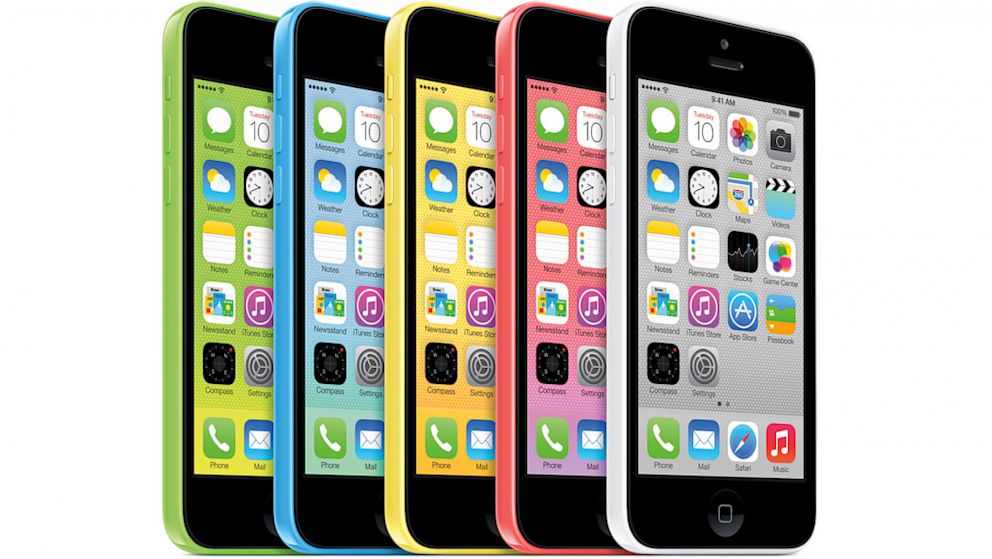
 by Apple, the 5C is certainly more colorful than any other Apple phone, perhaps even more colorful than any iPod. Instead of the metallic finishes that usually adorn Apple products, the 5C's color scheme looks like it was designed by either a candy manufacturer or an elementary school art class.
However, Apple emphasizes that though it looks playful, it is still a phone equal in power and performance to the iPhone 5. Phil Schiller, Apple's VP of marketing, said that the company also hasn't skimped on its structure, saying that the 5C is reinforced with steel. "You are going to be blown away by how rigid and great it feels in your hand," said Schiller.

Friday, October 2, 2015

An Overview of iOS 8′s New Accessibility Features

An Overview of iOS 8′s New Accessibility Features


An Overview of iOS 8′s New Accessibility Features 

we will cover each feature as it comes available.


Since this year’s WWDC keynote ended, the focus of any analysis on iOS 8 has been itsfeatures — things like Continuity, Extensions, and iCloud Drive. This is, of course, expected: iOS is the operating system that drives Apple’s most important (and most profitable) products, so it’s natural that the limelight be shone on the new features for the mass market.
As I’ve written, however, the Accessibility features that Apple includes in iOS are nonethelessjust as important and innovative as the A-list features that Craig Federighi demoed on stage at Moscone. Indeed, Apple is to be lauded for their year-over-year commitment to improving iOS’s Accessibility feature set, and they continue that trend with iOS 8.
Here, I run down what’s new in Accessibility in iOS 8, and explain briefly how each feature works.
Alex. Apple is bringing Alex, its natural-sounding voice on the Mac, to iOS. Alex will work with all of iOS’s spoken audio technologies (Siri excepted), including VoiceOver, Speak Selection, and another new Accessibility feature to iOS 8, Speak Screen (see below). In essence, Alex is a replacement for the robotic-sounding voice that controls VoiceOver, et al, in iOS today.
Speak Screen. With Speak Screen, a simple gesture will prompt the aforementioned Alex to read anything on screen, including queries asked of Siri. This feature will be a godsend to visually impaired users who may have issues reading what is on their iPhone and/or iPad. It should be noted that Speak Screen is fundamentally different from Speak Selection, which only reads aloud selected text. By contrast, Speak Screen will read aloud everything on the screen — text, button labels, etc.
Zoom. Apple has made some welcome tweaks to its Zoom functionality in iOS 8. The hallmark feature is users now have the ability to specify which part of the screen is zoomed in, as well as adjust the level of the zoom. In particular, it’s now possible to have the virtual keyboard on screen at normal size underneath a zoomed-in window. What this does is makes it easy to both type and see what you’re typing without having to battle the entirety of the user interface being zoomed in.
Grayscale. iOS in and of itself doesn’t have “themes” like so many third-party apps support — and even like OS X Yosemite’s new “dark mode”. iOS does, however, support a pseudo-theme by way of Invert Colors (white-on-black). In iOS 8, Apple is adding a second pseudo-theme to the system with Grayscale. With this option turned on, the entirety of iOS’s UI is turned, as the name would imply, gray. The addition of a Grayscale is notable because it gives those users who have issues with colorized display — or who simply view darker displays better — another way to alter the contrast of their device(s).
Guided Access. The big addition to Guided Access is that Apple is leveraging its own new-to-iOS-8 Touch ID developer API to enable users to be able to exit Guided Access using their scanned fingerprint. This is a noteworthy feature because it effectively guarantees that students (or test-takers or museum visitors) can’t leave Guided Access to access the Home screen or other parts of iOS.
As well, Apple has added a time limit feature to Guided Access, thereby allowing teachers, parents, and the like to specify the length of time Guided Access is to be used. Especially in special education classrooms, features such as Touch ID to exit and the timer can be extremely powerful in ensuring an uninterrupted learning experience, keeping students on task yet still set the expectation that a transition (i.e., “You can play games now”, for instance) will take place in X minutes. In terms of behavior modification, Guided Access’s new features are potentially game-changing, indispensable tools for educators.
Enhanced Braille Keyboard. iOS 8 adds support for 6-dot Braille input system-wide. This feature involves a dedicated Braille keyboard that will translate 6-dot chords into text.
“Made for iPhone” Hearing Aids. Apple in iOS 8 has improved its Made for iPhone Hearing Aids software so that now users who use hearing aids and have multiple devices now can easily switch between them. Moreover, if a hearing aid is paired with more than one device, users will now be able to pick which device they’d like to use.
Third Party Keyboard API. This topic (as well as QuickType) is worthy of its own standalone article, but the accessibility ramifications of iOS 8’s third party keyboard API are potentially huge for those with special needs.
A third-party keyboard on iOS 8. (Source: Apple.com)A third-party keyboard on iOS 8. (Source: Apple.com)
Anecdotally speaking, I hear from several low vision iOS-using friends who lament the default system keyboard, which is essentially the same keyboard that shipped with the original iPhone in 2007. The problem, my friends say, is that the key caps are too small and the glyphs too hard to read. With the new API, though, third party developers such as the team at Fleksycan create entirely customized keyboards that users can use instead of the stock one. This means developers can control key spacing and size, color, and so forth in an effort to create keyboards that accommodate for a wide array of visual — and motor — needs.
 They really believe the new Fleksy will benefit a lot of people with special needs.
Miscellany. iOS 8 brings with it a few housekeeping changes to Settings.app, where the Accessibility options are located. For example, the Subtitles & Captioning option — which previously was found under Hearing — has been moved to a new Media section, right next to a new Video Descriptions toggle. Furthermore, the Physical & Motor pane — home to such features as Switch Control and AssistiveTouch — has been rechristened Interaction.

Monday, June 1, 2015

Apple iPhone 5


Thank you techradar.com for the information for this post.
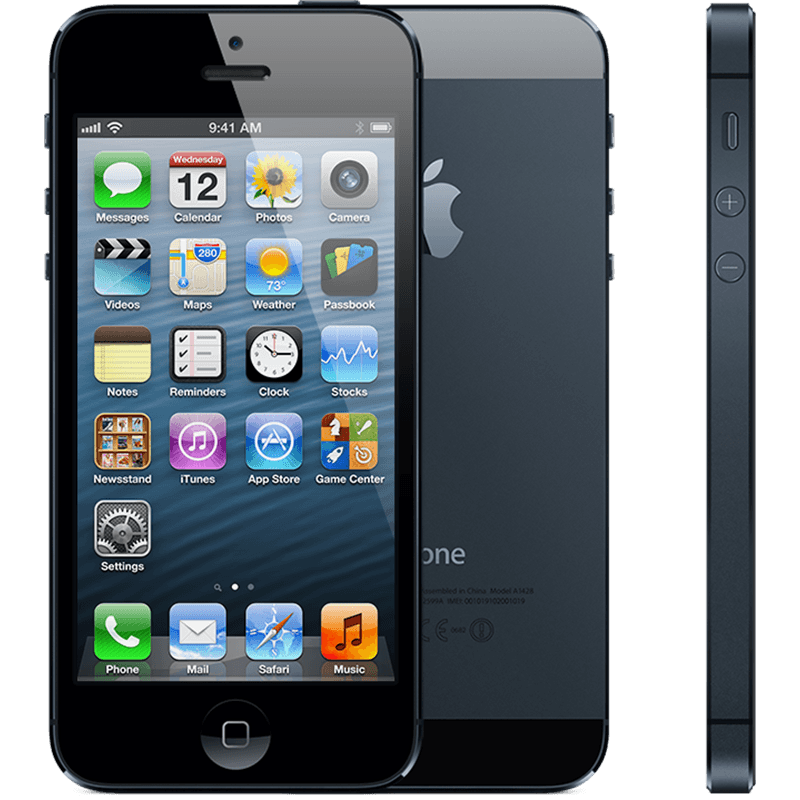
The excitement of the rumor mill, the titillation of every leaked photo led to higher than ever levels of expectation for the iPhone 5, and while the announcement was greeted with some derision at the lack of perceived headline improvements, the record sales tell an entirely different story.
Given the underwhelming changes to the iPhone 4S, the iPhone 5 really needed to re-energize customers to prove Apple can repeat the game-changing trick it managed with the iPhone 4.
  • Design
We'll begin in the traditional manner: how the thing actually feels in the hand. With the iPhone 5 there were many types of prospective buyers: the upgrader from the 4 (or more-money-than-sense iPhone 4S upgraders), those tired of their Android handset and those taking their first steps in the smartphone market and want to get one of them iThingies their friends has.

iPhone 5 review

Well, all of those picking up the iPhone 5 will have the same reaction: this thing is amazingly light. You've probably heard the numbers by now (20 percent lighter than the predecessor, as well as beating most of the opposition too at 112g.)
It's an odd sensation, but it actually detracts from the experience when you first pick it up. We've praised the weighty feel of the iPhone in the past, lending it a premium feel in the face of toy-like phones, and it's almost disappointing that Apple decided to join that clan.

iPhone 5 review

However, through extended use this problem quickly disappears, as the overall effect of the phone is still a chassis designed for strength, it just sits more anonymously in the pocket.

iPhone 5 review

You'll obviously see the change in height, too – the iPhone 5 stands 4.87-inches tall to allow for the larger 4-inch screen. In truth, those not familiar with the iPhone 4S probably wouldn't notice the difference, which is why it's a good move from Apple to include the larger screen if it's not going put people off that hate larger phones.

iPhone 5 review

The decision to stick at 4-inches is Apple's admission that while it recognizes people are all over the idea of having more screen real estate to play with it doesn't want to move away from the thumb-friendly nature of the device.
Through a mixture of moving the centre of gravity slightly as well as repositioning the screen within the bezel, it's still possible to scroll your thumb mostly around the whole display one-handed, which Apple is clearly keen to keep hold of.

iPhone 5 review

However, we're not convinced of that argument any more, and the power button was still a little out of reach when using the phone normally, as was anything in the top left-hand corner of the screen.
This was no issue in reality, as scooting the phone down a bit in the palm is a natural action. But if that's the case, then why not offer a 4.3-inch screen at least?
There's more to a phone than a screen these days (although increasingly less and less) and the general construction of the iPhone 5 is excellent to say the least.

iPhone 5 review

We've tested both the ceramic white version and the anodized black, and the two-tone effect on the back of the phone is stunning, both visually and under the finger.
iPhone 5 review


The two sections of pigmented glass at the top and the bottom of the phone add a pleasant effect, and the sapphire glass is meant to be thoroughly durable, to complement the Gorilla Glass on the front.
Apple knows consumers get furious when they drop an iPhone, and is clearly seeking to stop the smashes before they happen with a tougher exterior - although it seems the anodized black version is more prone to scratching, which means, sadly, you'll have to think about getting a cover for that beautiful frame.
The same industrial band around the outside is in effect again as on the iPhone 4 and 4S, with small sections removed where the antenna joins.
Apple has gone for a more advanced form of antenna here, meaning the days of lost signal are gone, and generally increasing the power of your call connection and GPS lock on, too.

iPhone 5 review

zYou can buy an adaptor, but it's going to be pricey: $30 when it lands in October. And unless you want to keep it permanently attached to the bottom of your iPhone 5 you'll need to buy a few, which is far from ideal.
However, let's not harangue Apple too much for this: a smaller connector is not only easier to use (you can plug the smaller cable in either way round, and the connection feels more solid), but you're rewarded with a thinner and more compact phone to boot.

iPhone 5 review

The decision to move the 3.5millimeter headphone jack to the bottom is an odd one, as while it allows you to slip the phone into the pocket head-first when listening to music, which is a more natural action, it's a real pain in the posterior for some apps that will only work in landscape a certain way up.
Using it this way means your headphones experience will be one of having to jiggle the jack around two fingers.
It's not the most comfortable way to hold a phone, and even when using the phone in portrait mode, the jack gets in the way somewhat.
There are other smaller design changes to the iPhone 5 too, such as the iSight front-facing camera moving to the middle and the home button being noticeably more robust to help reduce instances of a broken portal to your home screen.
iPhone 5 review

But enough about what the phone looks like - the killer question is how the thing feels in hand. We'll sum it up by saying this: smooth. It's a little slippery, and we were always worried we would drop the darn thing.
But that's the only negative thing about the design (apart from the low weight initially) as it sits in the palm nicely and allows you to do it all with one hand, including hitting the top-mounted power/lock button with ease.
That lock button is actually still loose, as it was on the iPhone 4S, meaning when you shake the phone around you can hear it clicking away, which undoes a lot of the premium feel Apple is going for.
Make no mistake, the iPhone 5 is one of the most beautifully crafted phones out there - but when you're paying $199 up front for the thing, we'd hope this would be the very minimum Apple would do.

iPhone 5 review

And while it looks nice, from the front it doesn't really add much to the design of the iPhone - it's certainly not the same as the jaw-dropping design of the iPhone 4 compared to the 3GS... it's just another evolution in the iLine. It's not bad, but for those that hoped the iPhone 5 would be another big change there's a good chance they'll be disappointed about the look... until they feel the lovely back.
There was a real chance here for Apple: remove the bezel and give the front of the screen a look that's similar to the OLED TVs from the likes of Samsung or LG… but instead we're treated to the same lines as before.
You always get the feeling that Apple saves what it can for the next iteration of the iPhone, and while there's nothing wrong with the current construction we can see the edge-to-edge screen becoming something amazing on the iPhone 6.